Browse From the Folders You Already Have.
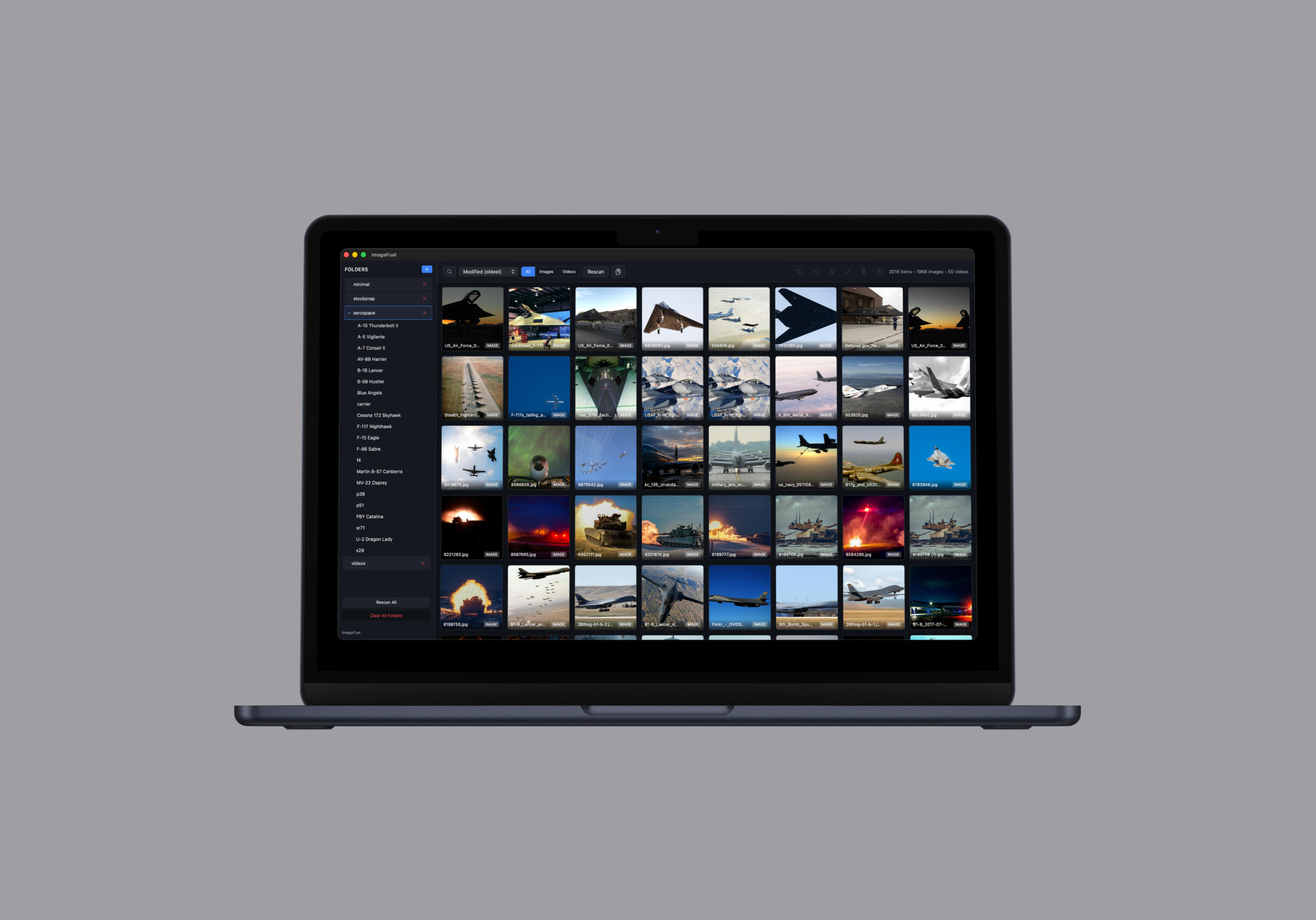
ImageFuel is a native macOS media browser that works with the folders you already have. Add folders from anywhere on your Mac and browse every photo and video in one clean grid. No library. No cloud. No account.
Browse From Your Folders
Add as many folders as you want. ImageFuel scans them all, including subfolders. Filter by images or videos. Sort by date, name, size, or file kind, or drag thumbnails into a custom order. Each folder remembers its own sort. Search by filename or path with Command-F.
Every Format You Shoot
RAW: CR2, CR3, NEF, ARW, DNG, RAF, ORF, RW2, PEF, SRW, 3FR, MOS, IIQ. Images: JPEG, PNG, HEIC, HEIF, TIFF, GIF, WEBP, BMP, SVG. Video: MP4, MOV, MKV, WEBM, M4V, 3GP. Thumbnails are generated natively by macOS. RAW previews are accurate with no conversion step.
16 Color Filters
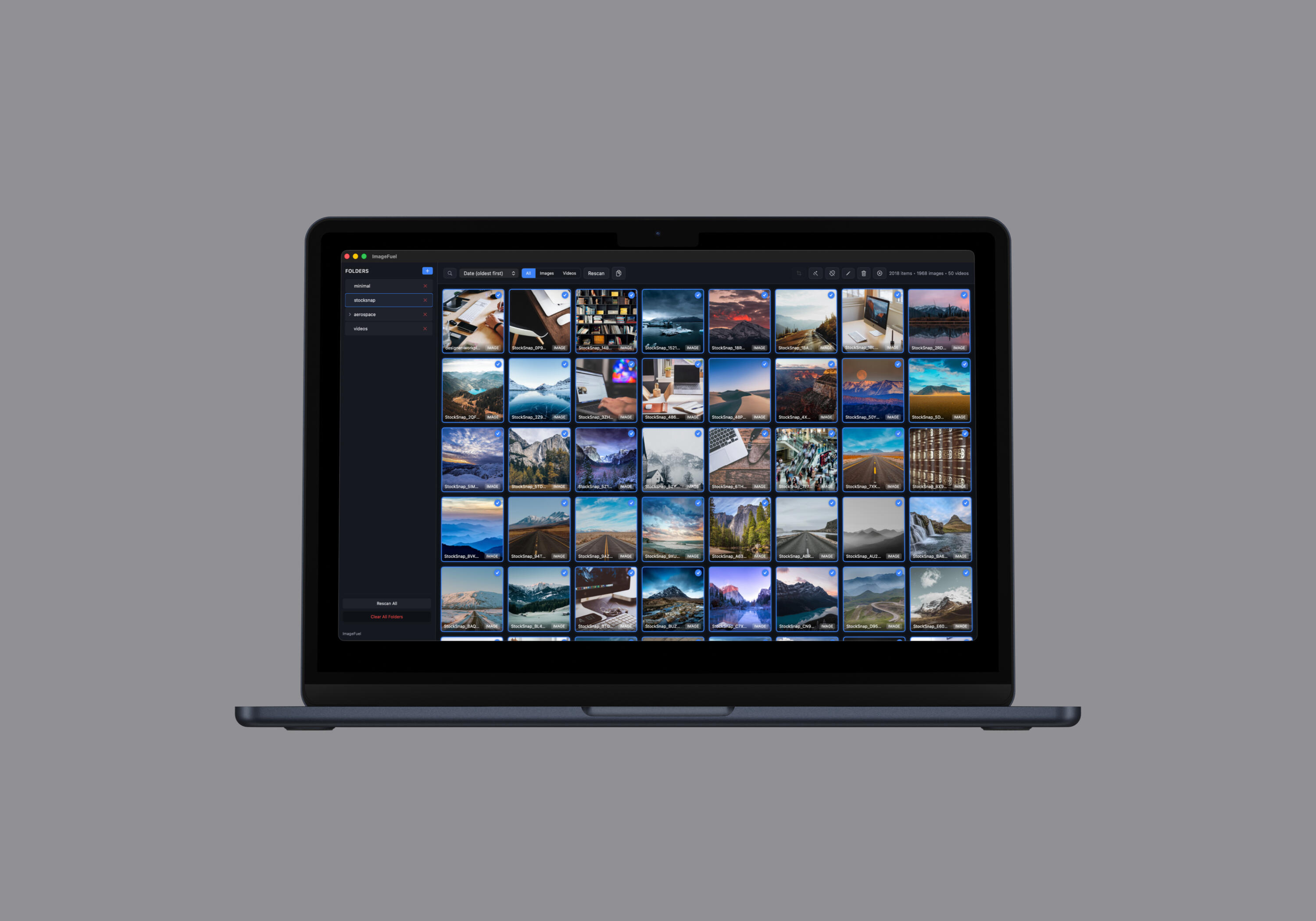
Select any number of images and apply one of 16 presets. Live preview updates as you choose. Nothing is written until you confirm. Assign different filters in the same batch, or apply one to everything. Save as copies or overwrite. One-click undo.
Crop, Rename, Strip Metadata
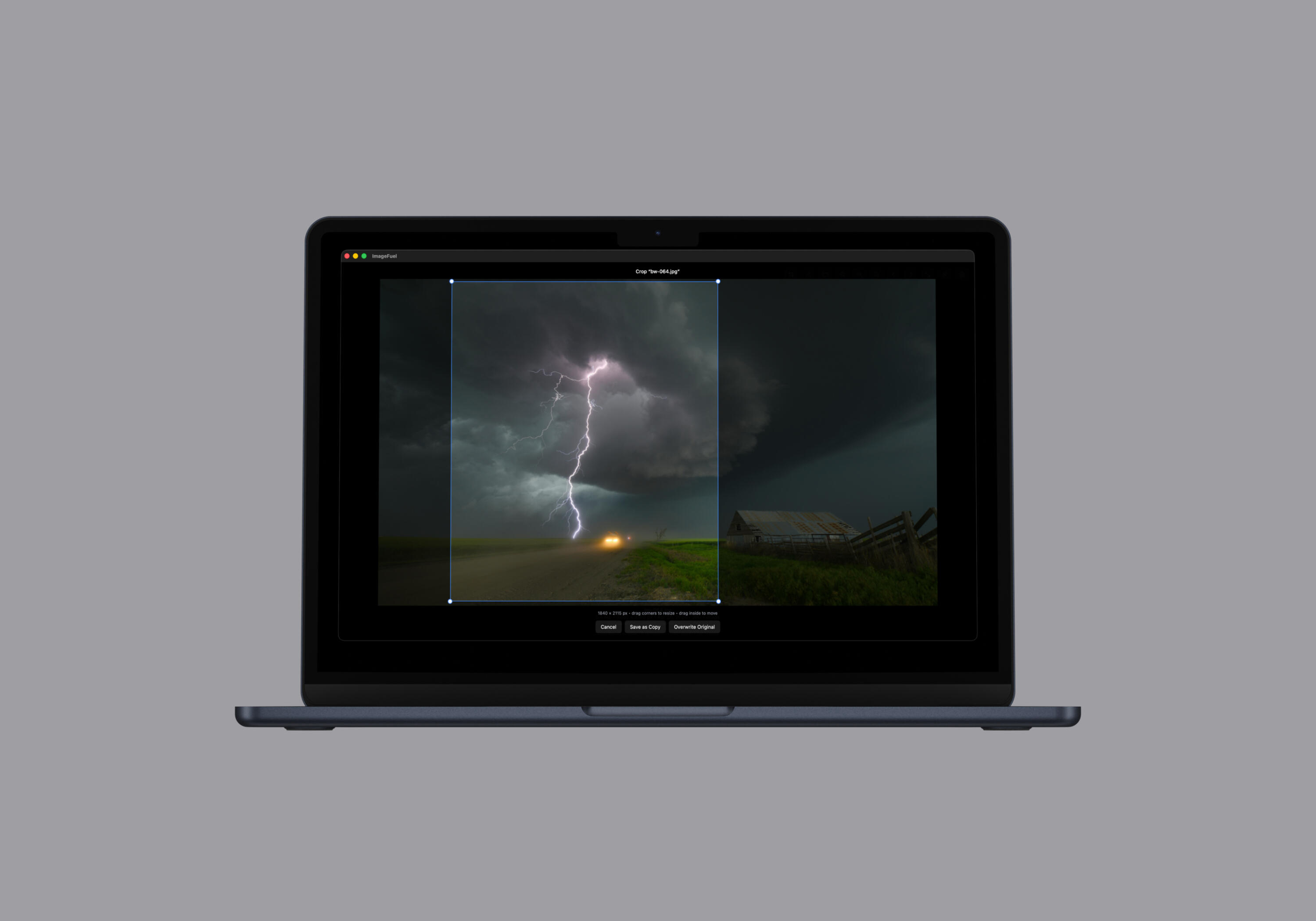
Crop by dragging corners, then save a copy or overwrite. Build a filename from tokens and preview every new name before anything changes. Duplicate conflicts are flagged first. Tokens: {name}, {n}, {date}, {year}, {month}, {day}. Strip GPS or all EXIF in bulk without re-encoding pixels.
No Library. No Account. No Cloud.
ImageFuel is a native SwiftUI app. Fast, keyboard-friendly, and dark by default. It runs entirely on your Mac.
- Click, Command-click, or Shift-click to select. Command-A selects everything.
- Delete sends files to the system Trash or to any folder you choose in Settings.
- A detail panel shows what is embedded in each file before you remove anything.
- The confirmation prompt can be turned off.


“
Metadata stripping baked in is a nice touch most folder browsers skip.
Robin T. Web Design Instructor
Review a Folder in Minutes.
Check Documentation →
01
Add a folder. ImageFuel scans it, including subfolders.
02
Search, sort, lightbox, crop, or apply filters.
03
Rename, strip metadata, or move files. Done.